
Close Menu
Entertainment Industry Reporter
    Facebook X (Twitter) Instagram
    Entertainment Industry Reporter
    • Home
    • Film
    • Television
    • Box Office
    • Reality TV
    • Music
    • Horror
    • Politics
    • Books
    • Technology
    • Popular Music Videos
    • Cover Story
    • Contact
      • About
      • Amazon Disclaimer
      • DMCA / Copyright Disclaimer
      • Privacy Policy
      • Terms and Conditions
    Entertainment Industry Reporter
    You are at:Home»Technology»How To Change And Customize Your Apple CarPlay Display
    Technology

    How To Change And Customize Your Apple CarPlay Display

    By AdminSeptember 9, 2026
    Facebook Twitter Pinterest LinkedIn Tumblr Email
    How To Change And Customize Your Apple CarPlay Display


    CarPlay is great as it comes, but a few personalization tweaks make it even more convenient.
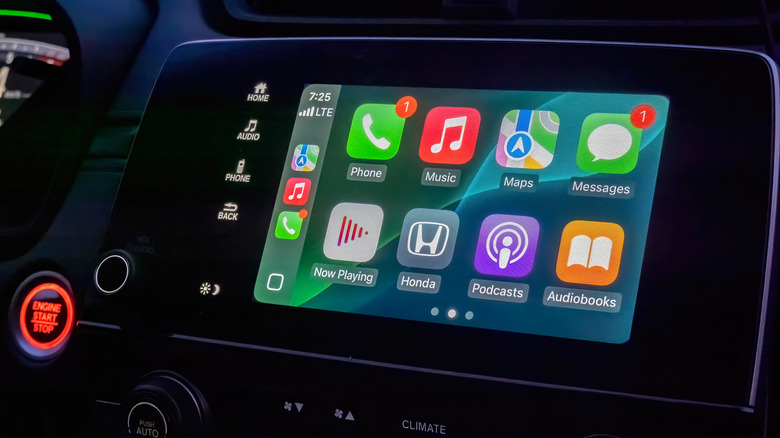

    CarPlay running on an infotainment screen in a car.
    Habanero Pixel/Shutterstock

    If your vehicle supports the feature, one of the best quality-of-life upgrades you can make to your drives is setting up Apple CarPlay with a cable or wirelessly. This way, you don’t need to deal with the clunkiness of a phone mount. Your navigation app of choice and essential media controls are displayed directly on your car’s infotainment screen. Plus, with Siri receiving a major overhaul in iOS 27, interacting with your device completely hands-free should finally feel reliable while you’re driving.

    CarPlay’s user interface uses a lot of bold text and large icons to make information easy to glance at and touch. It’s solid by default, but making a few tweaks will put the most important items in front of you and make everything easy to process.

    By default, CarPlay uses dark mode so your car’s infotainment screen doesn’t blind you in dim environments. If this makes readability during the day more difficult, you can switch to light mode by navigating to Settings > Appearance in CarPlay using the touch screen or your vehicle’s controls. Here, select Automatic to have CarPlay switch between light and dark modes depending on the ambient lighting conditions.

    The Settings app inside CarPlay (Settings > Wallpaper) is also where you can change the background that shows behind all your apps. Though you can’t use a custom image from your phone’s gallery, there are a handful of Apple-designed wallpapers with different color and pattern options to choose from. 

    Similarly, visit Settings > Customize Icons to pick a dark icon pack or switch to clear icons that follow Apple’s Liquid Glass design philosophy. In the Accessibility submenu, you can alter the text size to improve readability.

    Rearrange apps and use widgets in CarPlay
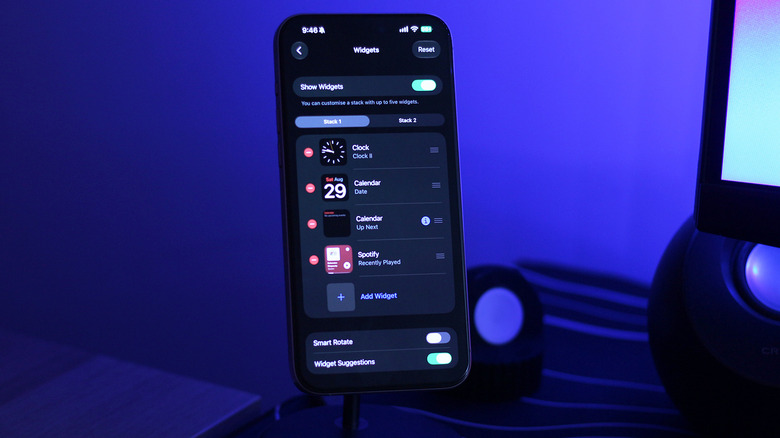

    Customizing CarPlay widgets on an iPhone.
    Adnan Ahmed for Engadget

    One of the best ways to personalize the display in CarPlay is rearranging the apps on the home screen. Unlike the above, this customization happens on your iPhone. Navigate to Settings > General > CarPlay and select your vehicle, then tap Apps.

    To bring your frequently used CarPlay apps to the first page, reorder the list using the handles. Your car’s display size affects how many apps appear on each page, so keep that number in mind as you adjust the list. Tap the Remove icon for any apps you don’t use; a few default ones can’t be removed, so drag them to the bottom if you don’t care about them.

    It took forever for the iPhone to feature widget support on the home screen and even longer for Apple to bring widgets over to CarPlay. Widgets were finally added to CarPlay with iOS 26; they live on a separate page accessible access by swiping right from the main dashboard. 

    Depending on how wide your car’s infotainment screen is, you’ll see one or more stacks of widgets at a time. By default, CarPlay lists widgets it thinks you might find useful, like the clock, calendar, media player and weather. To make better use of this space, you should customize which widgets show up in what stack. After all, you don’t want to be frantically going through the entire stack while on the road to find the widget you’re looking for. 

    To do this, visit the same CarPlay settings page on your phone as mentioned above. Tap Widgets and make sure the Show Widgets toggle is turned on. You can add widgets in each stack or reorder them to keep the essential ones easily accessible. What shows here depends on your installed apps.


    Original Source Link

    Share. Facebook Twitter LinkedIn Email Telegram WhatsApp

    Related Posts

    OpenAI Just Claimed a Huge Math Discovery. Some Academics Are Crying Foul

    How To Reset The Camera Settings On Your iPhone

    Home Depot Labor Day Sale (2026): BOGO on Best Grills and Tools

    Is It Safe To Buy A Refurbished iPhone From Walmart?

    The Best Laptop Backpacks for Work, Travel, and Everything Between (2026)

    Is It Safe To Leave Your Phone’s Bluetooth Running All The Time?

    Popular Posts

    Kim Kardashian’s Throwback Photos of Son Saint Are Adorable

    Judge orders Eric Adams, DOJ lawyers to explain case dismissal request

    The Kremlin’s Most Devious Hacking Group Is Using Russian ISPs to Plant Spyware

    The Week’s Most-Clicked Book News

    Walmart, Home Depot, Target CEOs at White House

    25 Actors Who Turned Down Huge Roles in Movies

    Elon Musk warns Cybertruck won’t be profitable until 2025

    Categories
    • Books (2,335)
    • Box Office (1,712)
    • Cover Story (46)
    • Events (34)
    • Featured (48)
    • Film (2,354)
    • Horror (2,339)
    • Lifestyle (10)
    • Music (2,426)
    • Music & Film Reviews (1)
    • Politics (1,485)
    • Popular Music Videos (1,768)
    • Reality TV (1,795)
    • Technology (2,346)
    • Television (2,125)
    • Uncategorized (1)
    Archives
    Useful Links
    • About
    • Contact
    • Privacy Policy
    • DMCA / Copyright Disclaimer
    • Amazon Disclaimer
    • Terms and Conditions
    Categories
    • Books (2,335)
    • Box Office (1,712)
    • Cover Story (46)
    • Events (34)
    • Featured (48)
    • Film (2,354)
    • Horror (2,339)
    • Lifestyle (10)
    • Music (2,426)
    • Music & Film Reviews (1)
    • Politics (1,485)
    • Popular Music Videos (1,768)
    • Reality TV (1,795)
    • Technology (2,346)
    • Television (2,125)
    • Uncategorized (1)
    Popular Posts

    Billie Eilish – LUNCH (Official Music Video)

    Madison Square Garden Disabled Its Surveillance System for Taylor Swift’s Wedding

    Theater counts: Lilo and Stitch remains widest release as it ventures into its second weekend

    Best Pop Music Playlist 2023 | Adele, Miley Cyrus, Justin Bieber, Rihanna, Ava Max, Zayn Vol. 14

    © 2026 Entertainment Industry Reporter. All rights reserved. All articles, images, product names, logos, and brands are property of their respective owners. All company, product and service names used in this website are for identification purposes only. Use of these names, logos, and brands does not imply endorsement unless specified. By using this site, you agree to the Terms & Conditions and Privacy Policy.

    Type above and press Enter to search. Press Esc to cancel.

    We use cookies on our website to give you the most relevant experience by remembering your preferences and repeat visits. By clicking “Accept All”, you consent to the use of ALL the cookies. However, you may visit "Cookie Settings" to provide a controlled consent.
    Cookie SettingsAccept All
    Manage consent

    Privacy Overview

    This website uses cookies to improve your experience while you navigate through the website. Out of these, the cookies that are categorized as necessary are stored on your browser as they are essential for the working of basic functionalities of the website. We also use third-party cookies that help us analyze and understand how you use this website. These cookies will be stored in your browser only with your consent. You also have the option to opt-out of these cookies. But opting out of some of these cookies may affect your browsing experience.
    Necessary
    Always Enabled
    Necessary cookies are absolutely essential for the website to function properly. These cookies ensure basic functionalities and security features of the website, anonymously.
    CookieDurationDescription
    cookielawinfo-checkbox-analytics11 monthsThis cookie is set by GDPR Cookie Consent plugin. The cookie is used to store the user consent for the cookies in the category "Analytics".
    cookielawinfo-checkbox-functional11 monthsThe cookie is set by GDPR cookie consent to record the user consent for the cookies in the category "Functional".
    cookielawinfo-checkbox-necessary11 monthsThis cookie is set by GDPR Cookie Consent plugin. The cookies is used to store the user consent for the cookies in the category "Necessary".
    cookielawinfo-checkbox-others11 monthsThis cookie is set by GDPR Cookie Consent plugin. The cookie is used to store the user consent for the cookies in the category "Other.
    cookielawinfo-checkbox-performance11 monthsThis cookie is set by GDPR Cookie Consent plugin. The cookie is used to store the user consent for the cookies in the category "Performance".
    viewed_cookie_policy11 monthsThe cookie is set by the GDPR Cookie Consent plugin and is used to store whether or not user has consented to the use of cookies. It does not store any personal data.
    Functional
    Functional cookies help to perform certain functionalities like sharing the content of the website on social media platforms, collect feedbacks, and other third-party features.
    Performance
    Performance cookies are used to understand and analyze the key performance indexes of the website which helps in delivering a better user experience for the visitors.
    Analytics
    Analytical cookies are used to understand how visitors interact with the website. These cookies help provide information on metrics the number of visitors, bounce rate, traffic source, etc.
    Advertisement
    Advertisement cookies are used to provide visitors with relevant ads and marketing campaigns. These cookies track visitors across websites and collect information to provide customized ads.
    Others
    Other uncategorized cookies are those that are being analyzed and have not been classified into a category as yet.
    SAVE & ACCEPT